
{label}
 ## How it works
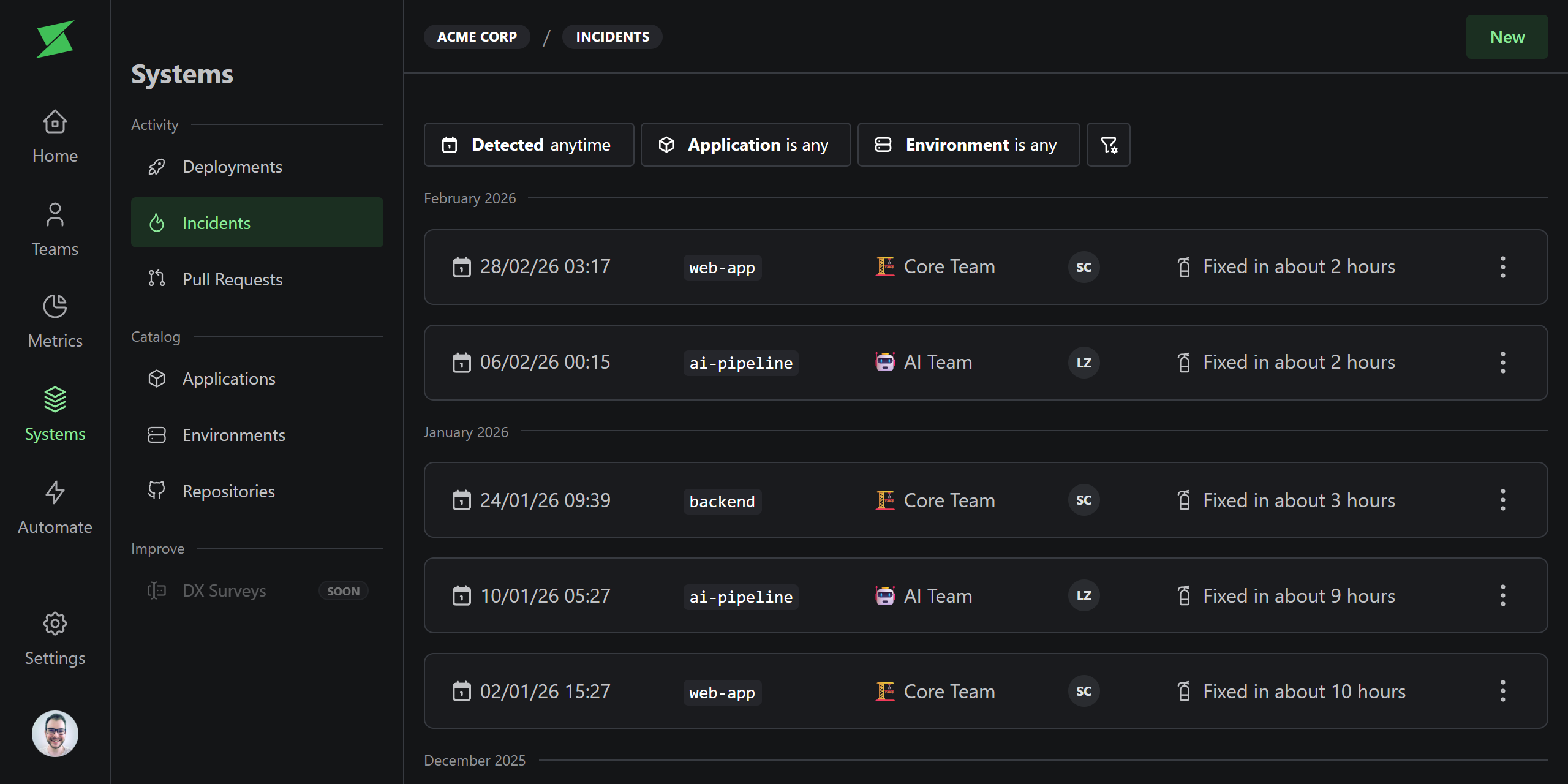
Incidents represent production issues caused by a deployment. They track the full lifecycle from detection to resolution, linking back to the deployment that caused the issue and the deployment that fixed it.
## Key fields
| Field | Description |
| -------------------- | ---------------------------------------------------- |
| **Cause deployment** | The deployment that introduced the issue (required). |
| **Fix deployment** | The deployment that resolved the issue. |
| **Detected at** | When the incident was detected. |
| **Resolved at** | When the incident was resolved. |
| **Team** | The team responsible for the incident. |
| **Leader** | The person leading incident response. |
| **Postmortem URL** | Link to the postmortem document. |
## Creating incidents
Incidents can be created in two ways:
* **Manually**: Create an incident from the UI, linking it to the deployment that caused it.
* **Automatically**: Use the [Incident Detection](/automations/incident-detection) automation to detect incidents from rollbacks, hotfixes, and reverts.
## Impact on metrics
Incidents directly feed into two DORA metrics:
* **Change Failure Rate**: The percentage of deployments that caused an incident.
* **Mean Time to Recovery**: The average time between incident detection and resolution.
## Archiving
Incidents that are no longer relevant can be archived. Archived incidents are excluded from metrics. You can unarchive them at any time.
## Related
## How it works
Incidents represent production issues caused by a deployment. They track the full lifecycle from detection to resolution, linking back to the deployment that caused the issue and the deployment that fixed it.
## Key fields
| Field | Description |
| -------------------- | ---------------------------------------------------- |
| **Cause deployment** | The deployment that introduced the issue (required). |
| **Fix deployment** | The deployment that resolved the issue. |
| **Detected at** | When the incident was detected. |
| **Resolved at** | When the incident was resolved. |
| **Team** | The team responsible for the incident. |
| **Leader** | The person leading incident response. |
| **Postmortem URL** | Link to the postmortem document. |
## Creating incidents
Incidents can be created in two ways:
* **Manually**: Create an incident from the UI, linking it to the deployment that caused it.
* **Automatically**: Use the [Incident Detection](/automations/incident-detection) automation to detect incidents from rollbacks, hotfixes, and reverts.
## Impact on metrics
Incidents directly feed into two DORA metrics:
* **Change Failure Rate**: The percentage of deployments that caused an incident.
* **Mean Time to Recovery**: The average time between incident detection and resolution.
## Archiving
Incidents that are no longer relevant can be archived. Archived incidents are excluded from metrics. You can unarchive them at any time.
## Related